Thursday, 27 June 2013

Windows 8.1 Preview ... First Look


Windows 8.1 Preview Live Tiles & Charm Bar

 
Windows 8.1 Desktop (notice the Windows Start button is back?)
 
The Windows 8.1 Preview is available for download now, check out the preview at  http://windows.microsoft.com/en-us/windows-8/download-preview.  I shall blog more about the cool features in my coming post.  Stay tuned. :)

Friday, 7 June 2013

Microsoft Surface Surface User Guide


For those who are looking for a complete Microsoft Surface RT or Pro user guide, the user guide is now available for download from Microsoft Surface webste.  Check out the user guide Surface RT User Guide and Surface Pro User Guide.

Wednesday, 8 May 2013

What if I remove Windows To Go USB drive while it is running?


What happens if Windows To Go USB drive remove from a USB port while it is running?

Below are the outcomes from my testing in the summary:

  • If the Windows To Go drive is removed, the computer will freeze and the user will have 60 seconds to reinsert the Windows To Go USB drive to USB port.  


  • If the Windows To Go drive is reinserted into the same port it was removed from within 60 seconds, Windows will resume at the point where the drive was removed.  Below Windows warning message will  prompt the user, "Keep the USB drive plugged in, Only remove it after your PC has shut down completely.  Otherwise, your Windows To Go workspace might crash and you could lose data."


  • If the USB drive is not reinserted, or is reinserted into a different port, the host computer will turn off after 60 seconds follow by a Windows 8 Blue Screen or BYOD for example the below:


Note: Remove of  USB drive Windows To Go USB while Windows still running for several times without proper shut down may corrupt Windows and may require a rebuild of Windows To Go workspace.

Monday, 6 May 2013

How to create Windows To Go workspace in Windows 8


Windows To Go

Windows To Go is a new feature for enterprise users of Windows 8 Enterprise version that enables users to boot a full version of Windows from external USB drives on host PCs.

The following is the step by step guide to create Windows To Go in Windows 8:

Connect the USB drive you will make into a Windows To Go drive to your machine.  Hold on Windows button with W, type Windows To Go and then press Enter.   Select Windows To Go and the Windows To Go Creator Wizard opens.


On the Choose the drive you want to use page, select the USB drive connected earlier.

Note: Windows To Go perform better using USB 3.0


On the Choose a Windows 8 image page, click Add Search Location and then navigate to the WIM file folder location (can be Windows Installation CD or ISO file Mounting drive)


On the Set a BitLocker password (optional) page, you can select Use BitLocker with my Windows To Go
Workspace to encrypt your Windows To Go drive.  In this case, skip to encrypt the drive at this time.


On Ready to create your Windows To Go workspace page, Click Create to start the Windows To Go workspace provisioning process.


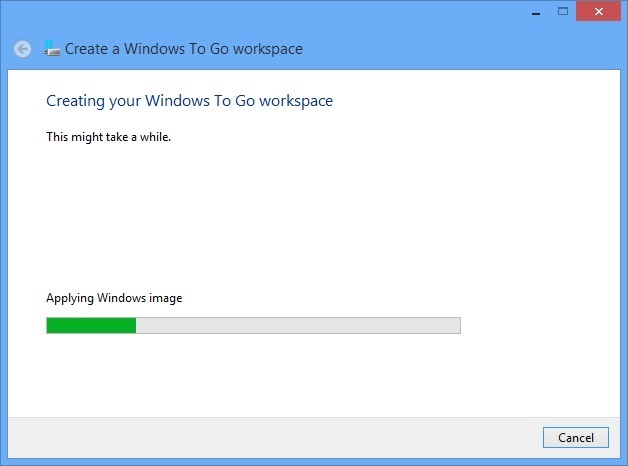
Creating Windows To Go workspace process start from now and it may take a while (up to 30 minutes depending on the size the USB drive connected, USB 2.0 may take longer time to complete), wait for the creation process to complete


On Choose a boot option which is also the completion page, select to enable the Windows To Go startup options and reboot into your Windows To Go device.  To complete the setup, select Save and restart or Save and close (if you choose to restart Windows later).   In this case, I will choose to No to manually boot my Windows To go workspace from USB drive.


Note: If you need to change the booting option, holn on Windows button+W, type "Change Windows To Go startup options", click on the icon to bring up the Create a Windows To Go workspace page again.


After the restart, the Windows To Go workspace is ready to boot from your USB drive.  Enjoy!

Friday, 12 April 2013

Windows XP SP3 and Office 2003 Support Ends April 8, 2014


In about 360 from now, Windows XP SP3 and Office 2003 will be End of Support.  To find out more about the below questions , check out http://www.microsoft.com/en-us/windows/endofsupport.aspx  
  • Why is Microsoft ending support for Windows XP SP3 and Office 2003?   
  • What does end of support mean to customers?  
  • How do I begin my migration?


Monday, 8 April 2013

Toolkit to Disable Automatic Delivery of Internet Explorer 10


For those who would like to block automatic delivery of Internet Explorer 10 to machines in environments where Automatic Updates is enabled.  Microsoft has released Toolkit to Disable Automatic Delivery of Internet Explorer 10 to disable automatic delivery of Internet Explorer 10 as an important class update via Automatic Updates (AU) feature of Windows Update (WU).   Download and test out the toolkit if you are not ready for Internet Explore 10 in your environment :)