Thursday, 24 October 2013
Free ebook: Introducing Windows Azure for IT Professionals
Another free ebook from Microsoft , check out the Introducing Windows Azure for IT Professionals ebook at http://blogs.msdn.com/b/microsoft_press/archive/2013/10/01/free-ebook-introducing-windows-azure-for-it-professionals.aspx


Wednesday, 23 October 2013
Getting started tutorials for Windows 8.1
Come across a very handy and useful site for those who just started using Windows 8.1, check out Getting started tutorials for Windows 8.1 or http://windows.microsoft.com/en-us/windows/how-to with many videos and How-to :)
Tuesday, 22 October 2013
Remote Desktop Client for Apple's iOS - First Look
In my earlier post, Microsoft launches official Remote Desktop app for Apple's iOS and Remote Desktop App for Android, iOS and MAC I published about Microsoft Remote Desktop client for Apple's iOS and I have captured some screenshots to share the overview of how it works from an iPad remote desktop to Windows 8.1 Enterprise client. I hope the below screenshots do help and benefit you guys.


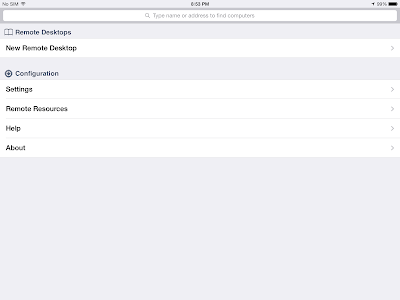
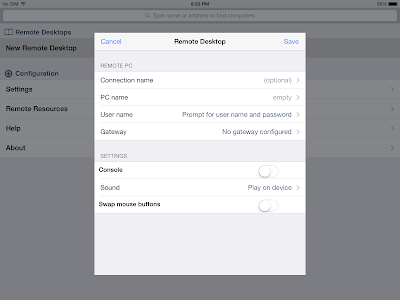

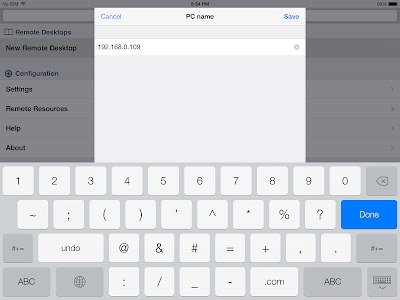
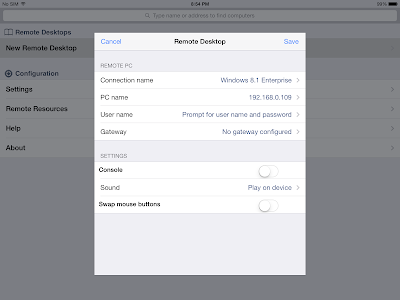




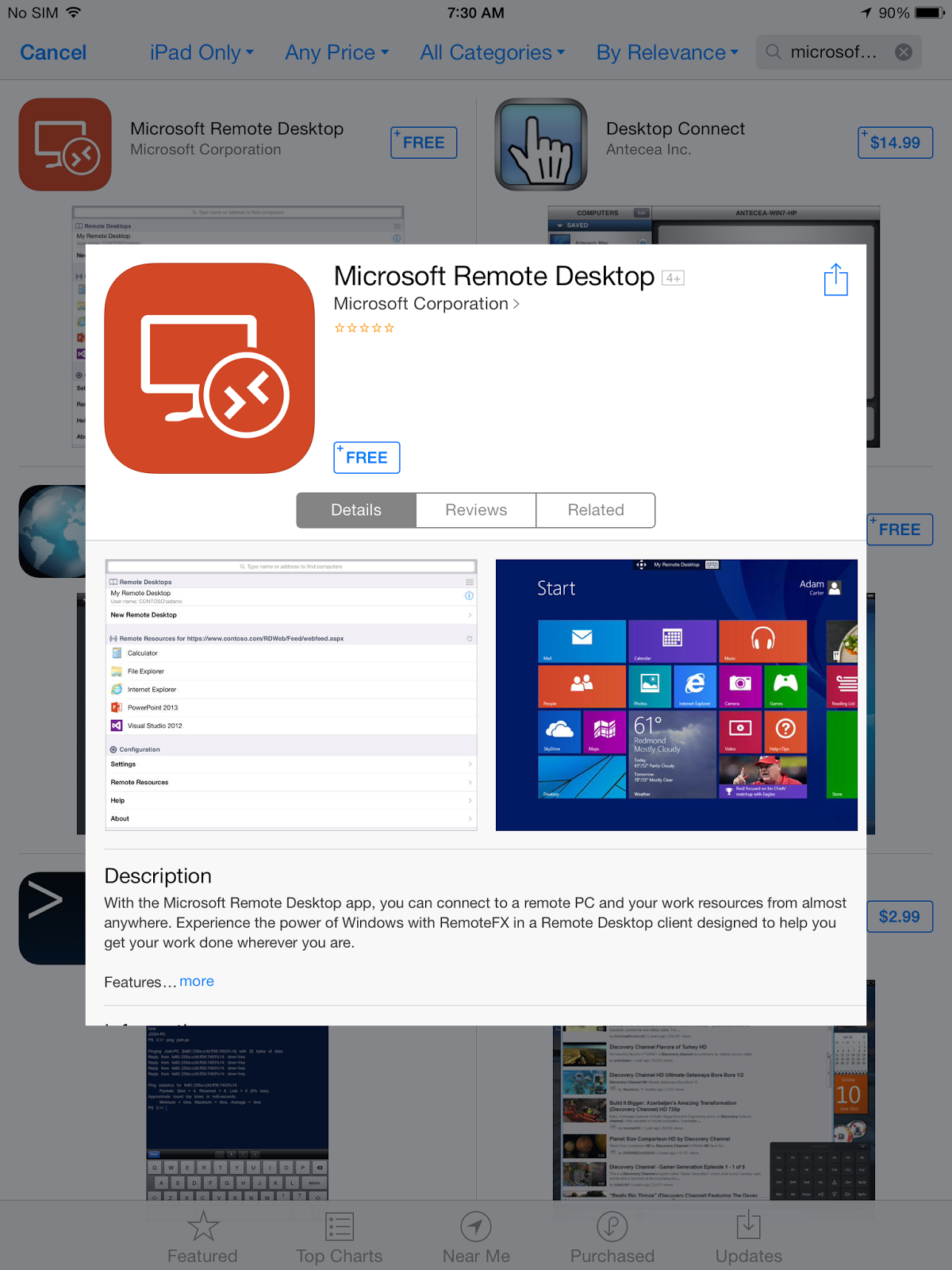
From the iPad App Store, search Microsoft Remote Desktop and install the app on iPad
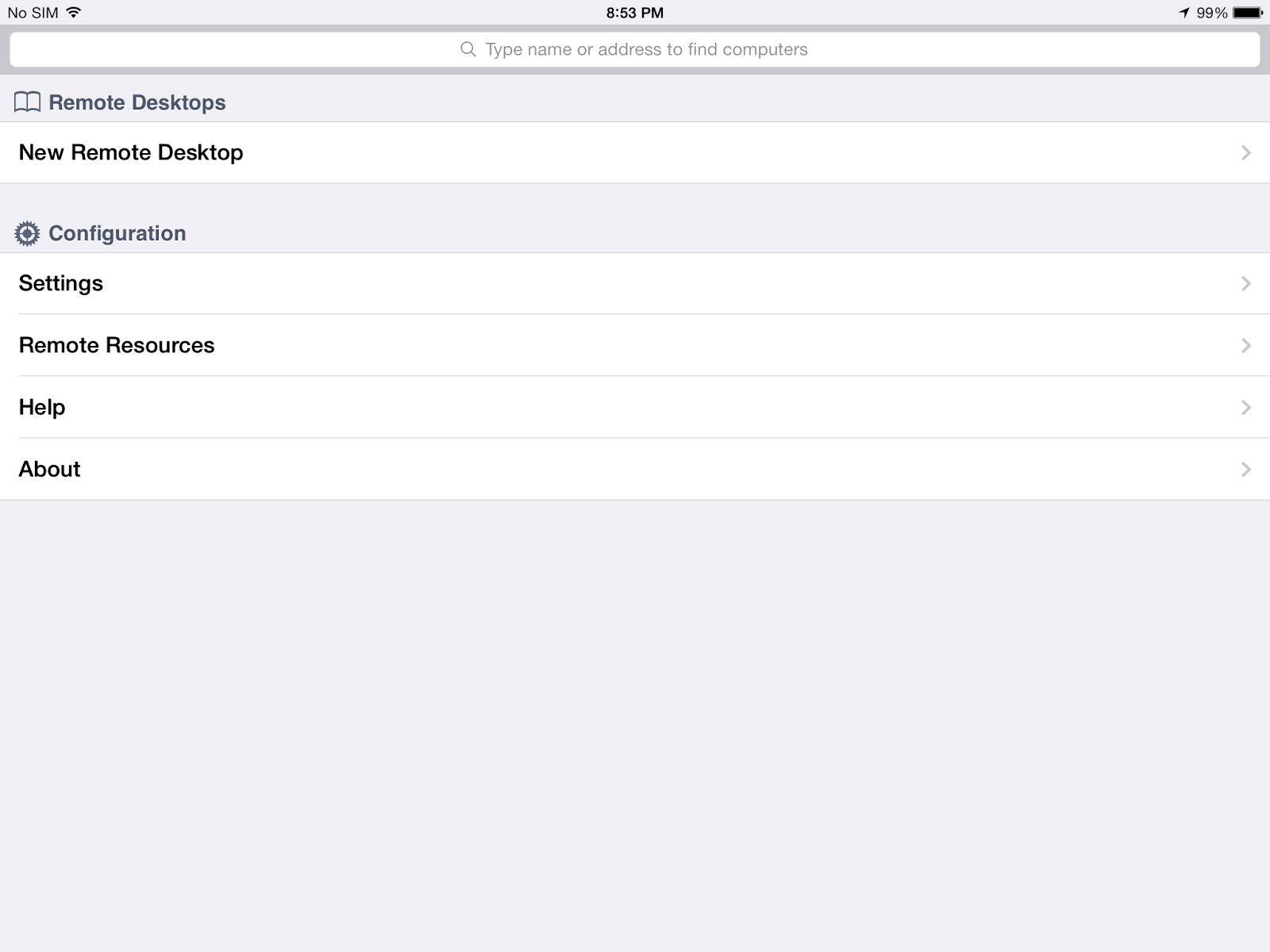
Once Microsoft Remote Desktop installed, click on the RD Client to launch App

Once RD Client launched, you will see a landscape view of the App

To start a New Remote Desktop connection, click on New Remote Desktop on the menu on the left
You will need to key in the Remote Desktop details on the New Remote Desktop setup

Key in the Connection name

Next, key in the IP address of the target Remote Desktop server or client

Once done, click on Save and you should be able to start a Remote Desktop session now even or you may choose to key in and save the user name and password for login.

Connect to the Remote Desktop Connection created earlier and the App prompt for user name and password

Key in the user name and password to logon

Below is a screen of Remote Desktop trying to reached to the Remote Desktop Connection

Once Remote Desktop session successfully established, you will be able to see the Desktop or the remote client. In this case, I am accessing a Windows 8.1 Enterprise client

You are able to tap and touch from iPad on Windows 8.1 via the Remote Desktop for eg. to bring up the Start menu

You will also be able to type in command prompt as if typing on desktop

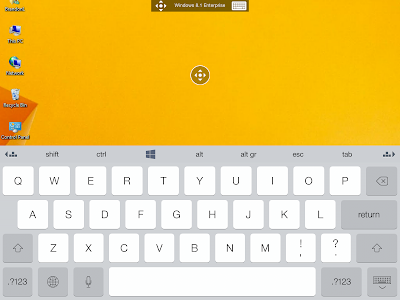
To bring up the top menu simply tap on the top menu bar, from here you will be able to disconnect the Remote Desktop and to bring up the soft keyboard

The soft keyboard is designed for Windows use where you can find the Windows key on the top row and some common use keys
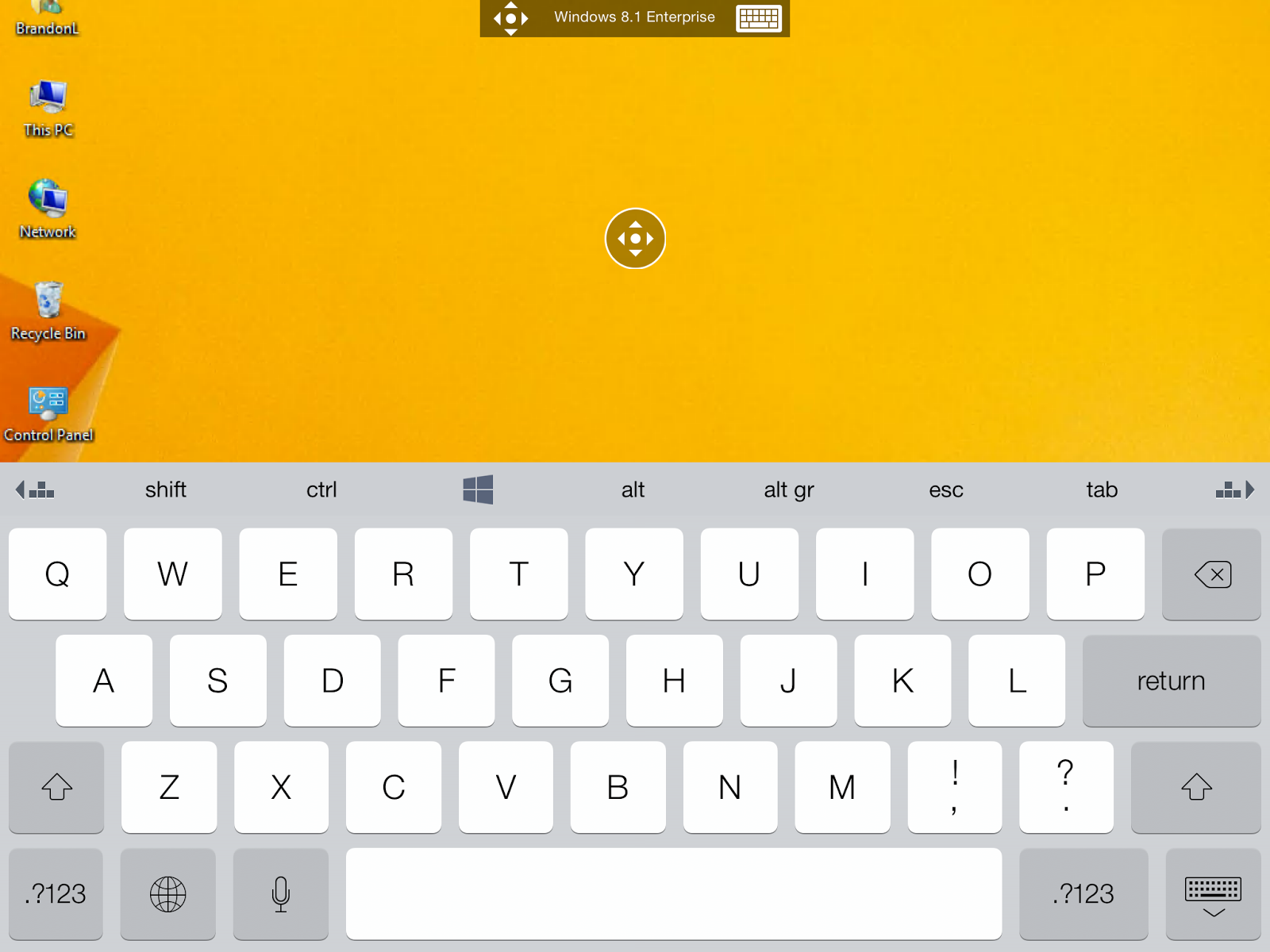
The Keyboard can be resized as well

Try to tap on the Windows logo key now

Tada, the Windows 8.1 Tiles appearr now!

You will be able to use the Tiles and navigate around, the experience is seamless from using the Windows on a physical computer. I am sure this tool absolutely benefit most of us who use Remote Desktop for daily work. Try out one today :)

Monday, 21 October 2013
5 steps to create a Windows Store app
Check out the 5 steps to create a Windows Store app at Get started building Windows Store apps – Windows Dev Center or http://msdn.microsoft.com/en-us/windows/apps/jj679957
Sunday, 20 October 2013
Remote Desktop App for Android, iOS and MAC
To start using the Microsoft Remote Desktop App for any of these platforms, simply follow these links:
Android: https://play.google.com/store/apps/details?id=com.microsoft.rdc.android
iOs: https://itunes.apple.com/us/app/microsoft-remote-desktop/id714464092?mt=8
Mac: https://itunes.apple.com/us/app/microsoft-remote-desktop/id715768417?mt=12&ls=1
Android: https://play.google.com/store/apps/details?id=com.microsoft.rdc.android
iOs: https://itunes.apple.com/us/app/microsoft-remote-desktop/id714464092?mt=8
Mac: https://itunes.apple.com/us/app/microsoft-remote-desktop/id715768417?mt=12&ls=1
Saturday, 19 October 2013
Microsoft launches official Remote Desktop app for Apple's iOS
Microsoft has released an official Remote Desktop App for iPhone and iPad, this App allow iOS devices access ability to access Windows machine anytime, anywhere. The office Microsoft Remote Desktop is free App is available for
Microsoft Remote Desktop is a free application available on the Apple App Store and it requires iOS 6.0 or later as compatible platform supporting this App. IF you are iOS user as well as Windows administrator, check out this app now and share with us your experience. I shall post my testing experience in my coming blog soon. Stay tuned :)

Microsoft Remote Desktop is a free application available on the Apple App Store and it requires iOS 6.0 or later as compatible platform supporting this App. IF you are iOS user as well as Windows administrator, check out this app now and share with us your experience. I shall post my testing experience in my coming blog soon. Stay tuned :)

Friday, 18 October 2013
Windows 8.1 Enterprise x64 RTM - First Look (Part 4)
The Windows 8.1 Search has a new approach where the Search is integrated with Bing search engine which makes searching of information much efficient and faster by skipping a step to launch the browser. It is an awesome idea and you should try and start using this approach once you have your Windows 8.1 upgraded :)
The following are some snapshots of the Windows 8.1 search simply to share the good feature with you :)


The following are some snapshots of the Windows 8.1 search simply to share the good feature with you :)
Press Windows key + C to bring up Charm bar, you will find Search icon on the top of the bar

Click on the Search icon, if you type in the syntax that you will like to search, by default Windows 8.1 Search will search Everywhere

You may now choose to search Everywhere, Settings, Files, Web images and Web videos when you click on the drop down menu

Everywhere - Search everywhere on your computer

Settings - Search items on PC Settings only

Web images - you may search images on the web and it is powered by Bing search engine

Below is the result from the Web image search

Web videos- you may search videos on the web and it is powered by Bing search engine

Below is the result from the Web videos search

You may choose to turn on and off Bing search on by changing the PC Settings

Let's try out the new Search approach :)
Subscribe to:
Posts (Atom)