Showing posts with label Windows 8. Show all posts
Showing posts with label Windows 8. Show all posts
Friday, 1 November 2013
Desktop Hosting Reference Architecture Guide
The Desktop Hosting Reference Architecture Guide quite a good start for those who are planning desktop hosting solutions, this guide is meant for for small- and medium-sized organizations based on Microsoft Remote Desktop Services, Hyper-V, virtual networking, and other virtualization technologies. Check out the guide at http://www.microsoft.com/en-us/download/details.aspx?id=39285


Tuesday, 8 October 2013
Bring Your Own Device (BYOD) Test Lab Guides - Series v1.2
These Test Lab Guide demonstrate BYOD scenarios implementation using Microsoft technologies to with details explanation and step-by-step guide. The technologies including Windows Server 2012 platform and Microsoft clients like Windows RT, Windows 7 and Windows 8 or non-Microsoft tablet or phone devices. For those who are planning and research BYOD, check out the Bring Your Own Device (BYOD) Test Lab Guides - Series v1.2!
The following table sums up the illustrated scenarios.
The following table sums up the illustrated scenarios.
- BYOD - Test Lab Guide 1 - Base Configuration 1.0
- BYOD - Test Lab Guide 2 - File Access 1.0
- BYOD - Test Lab Guide 3 - Exchange Messaging with Data Protection v1.0
- BYOD - Test Lab Guide 4 - Data classification and encryption v1.0
- BYOD - Test Lab Guide 5 - Windows Intune v1.0
Monday, 7 October 2013
BYOD devices - A deployment guide for education
This is a informative guide of Bring Your Own Device (BYOD) considerations for education, including device types, deployment models, and infrastructure-related considerations for BYOD deployments.
Check out BYOD devices - A deployment guide for education based on Windows 8.
Check out BYOD devices - A deployment guide for education based on Windows 8.
Thursday, 3 October 2013
Windows 8 Shortcuts
For Windows shortcut fans out there, check out the below additional Windows shortcuts table or Windows 8 Shortcuts!


Tuesday, 2 July 2013
Windows 8.1 Preview - New Feature - Boot to Desktop
One of the new features of Windows 8.1 Preview is lets you boot your Windows to desktop natively. If you prefer to boot to the desktop directly here are few steps to enable Boot to Desktop:
1. Right click on the taskbar, then click on properties

2. Click on the Navigation tab, then under the Start screen section, check the box next to "Go to the desktop instead of Start when I sign in."
3. Click OK to close the properties window. The next time you boot Windows 8.1, you'll go straight to the desktop.

If you would like to boot to the Start screen with Windows 8 Live Tiles, just repeat the above steps and unchecked the box next to "Go to the desktop instead of Start when I sign in." and follow by a reboot.
1. Right click on the taskbar, then click on properties

2. Click on the Navigation tab, then under the Start screen section, check the box next to "Go to the desktop instead of Start when I sign in."
3. Click OK to close the properties window. The next time you boot Windows 8.1, you'll go straight to the desktop.

If you would like to boot to the Start screen with Windows 8 Live Tiles, just repeat the above steps and unchecked the box next to "Go to the desktop instead of Start when I sign in." and follow by a reboot.
Thursday, 27 June 2013
Windows 8.1 Preview ... First Look

Windows 8.1 Preview Live Tiles & Charm Bar

Windows 8.1 Desktop (notice the Windows Start button is back?)
The Windows 8.1 Preview is available for download now, check out the preview at http://windows.microsoft.com/en-us/windows-8/download-preview. I shall blog more about the cool features in my coming post. Stay tuned. :)
Friday, 7 June 2013
Microsoft Surface Surface User Guide

For those who are looking for a complete Microsoft Surface RT or Pro user guide, the user guide is now available for download from Microsoft Surface webste. Check out the user guide Surface RT User Guide and Surface Pro User Guide.
Thursday, 6 June 2013
Windows 8.1 Preview is coming soon

Check out the following official news about Windows 8.1 news ... :)
Windows 8.1 Preview is coming soon
What's New in Windows 8.1
Continuing the Windows 8 vision with Windows 8.1
Wednesday, 8 May 2013
What if I remove Windows To Go USB drive while it is running?
What happens if Windows To Go USB drive remove from a USB port while it is running?
Below are the outcomes from my testing in the summary:
- If the Windows To Go drive is removed, the computer will freeze and the user will have 60 seconds to reinsert the Windows To Go USB drive to USB port.
- If the Windows To Go drive is reinserted into the same port it was removed from within 60 seconds, Windows will resume at the point where the drive was removed. Below Windows warning message will prompt the user, "Keep the USB drive plugged in, Only remove it after your PC has shut down completely. Otherwise, your Windows To Go workspace might crash and you could lose data."


- If the USB drive is not reinserted, or is reinserted into a different port, the host computer will turn off after 60 seconds follow by a Windows 8 Blue Screen or BYOD for example the below:

Note: Remove of USB drive Windows To Go USB while Windows still running for several times without proper shut down may corrupt Windows and may require a rebuild of Windows To Go workspace.
Monday, 6 May 2013
How to create Windows To Go workspace in Windows 8

Windows To Go
Windows To Go is a new feature for enterprise users of Windows 8 Enterprise version that enables users to boot a full version of Windows from external USB drives on host PCs.
The following is the step by step guide to create Windows To Go in Windows 8:
Connect the USB drive you will make into a Windows To Go drive to your machine. Hold on Windows button with W, type Windows To Go and then press Enter. Select Windows To Go and the Windows To Go Creator Wizard opens.
 |
Note: Windows To Go perform better using USB 3.0

On the Choose a Windows 8 image page, click Add Search Location and then navigate to the WIM file folder location (can be Windows Installation CD or ISO file Mounting drive)

On the Set a BitLocker password (optional) page, you can select Use BitLocker with my Windows To Go
Workspace to encrypt your Windows To Go drive. In this case, skip to encrypt the drive at this time.

On Ready to create your Windows To Go workspace page, Click Create to start the Windows To Go workspace provisioning process.

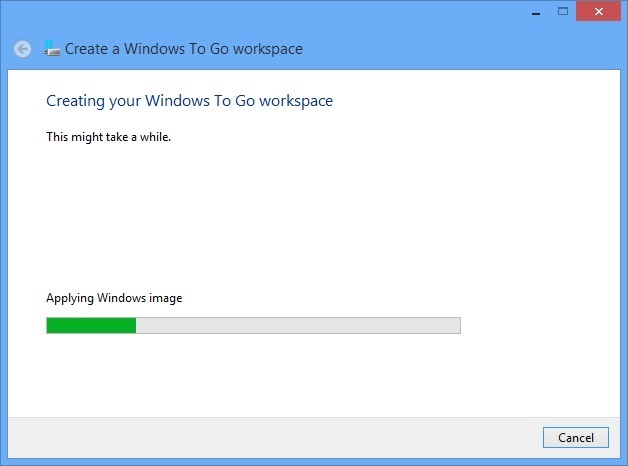
Creating Windows To Go workspace process start from now and it may take a while (up to 30 minutes depending on the size the USB drive connected, USB 2.0 may take longer time to complete), wait for the creation process to complete


On Choose a boot option which is also the completion page, select to enable the Windows To Go startup options and reboot into your Windows To Go device. To complete the setup, select Save and restart or Save and close (if you choose to restart Windows later). In this case, I will choose to No to manually boot my Windows To go workspace from USB drive.
Note: If you need to change the booting option, holn on Windows button+W, type "Change Windows To Go startup options", click on the icon to bring up the Create a Windows To Go workspace page again.

After the restart, the Windows To Go workspace is ready to boot from your USB drive. Enjoy!
Monday, 8 April 2013
Toolkit to Disable Automatic Delivery of Internet Explorer 10

For those who would like to block automatic delivery of Internet Explorer 10 to machines in environments where Automatic Updates is enabled. Microsoft has released Toolkit to Disable Automatic Delivery of Internet Explorer 10 to disable automatic delivery of Internet Explorer 10 as an important class update via Automatic Updates (AU) feature of Windows Update (WU). Download and test out the toolkit if you are not ready for Internet Explore 10 in your environment :)
Friday, 5 April 2013
Toolkit to Disable Automatic Delivery of Internet Explorer 10

For those who would like to block automatic delivery of Internet Explorer 10 to machines in environments where Automatic Updates is enabled while in-house application compatibility evaluation still in progress. The Internet Explorer 10 Blocker Toolkit enables users to disable automatic delivery of Internet Explorer 10 as an important class update via Automatic Updates (AU) feature of Windows Update (WU).
Check out Toolkit to Disable Automatic Delivery of Internet Explorer 10 at http://www.microsoft.com/en-us/download/details.aspx?id=36512
Thursday, 4 April 2013
Internet Explorer 10 - Install new version automatically

For those who wanted to disable 'Install new versions automatically' or Auto Update for Internet Explorer 10, it can be done easily with the following quick steps.
To disable 'Install new versions automatically', goto Tools - About Internet Explorer. Uncheck the box to disable the Auto Update. To enable 'Install new versions automatically' simply check the checkbox and it will does the job accordingly.
Wednesday, 27 February 2013
Download Internet Explorer 10 for Windows 7 & Windows Server 2008
Microsoft releases Internet Explorer 10 to Windows 7 & Windows Server 2008 recently, to download the latest Internet Explorer for your Windows, check out Download Internet Explorer 10 site.


Saturday, 23 February 2013
Surface RT Vs Surface Pro
Here are some guideline for whom interested in Surface:
Check out Which Surface is right for you on the Microsoft Surface webpage

Surface User Guide also available for download, below are some key differences extracted from the user guide:
Wednesday, 13 February 2013
Microsoft Security Bulletins
Not sure about the details about Microsoft Updates installed and available for download? Goto the Microsoft TechNet for detailed information about these updates. You can search security bulletins by product or component, and filter results by configuring the release date range with a start and end day at Microsoft TechNet Security TechCenter - Microsoft Security Bulletins Summary. The following snapshot of all updates for Windows 8 up to today:
 |
| Security Bulletins for Windows 8 |
Saturday, 29 September 2012
Windows 8 Keyboard Shortcuts
For Windows Keyboard Shortcuts lovers, the Keyboard shortcuts for Windows 8 chart is a handy chart that could help to move around Windows 8 faster, so enjoy your shortcut typing :)


Sunday, 23 September 2012
Windows 8 - Windows Explorer Improvement
Overview
Windows 8 comes with 'new' Windows Explorer based on ribbon approach which is similar to Microsoft Office ribbon style. The new Windows Explorer based put the most important and frequent use commands in very prominent, front and center locations, it makes it easy to find and reached commands also predictably.
Using the similar ribbon approach to Microsoft Office, meaning users will be familiar with the model and need not have to re-learn the way how new Windows Explorer works. It provides a consistent, menu-based, ribbon approach user interfaces to users from Windows 8 to Microsoft Office.
Below are some snapshots of the new ribbon based Windows 8 Windows Explorer that I would like to share with you:
New Windows Explorer
Folders under the Libraries folder will share the same Explorer tab/functions:

Windows 8 comes with 'new' Windows Explorer based on ribbon approach which is similar to Microsoft Office ribbon style. The new Windows Explorer based put the most important and frequent use commands in very prominent, front and center locations, it makes it easy to find and reached commands also predictably.
Using the similar ribbon approach to Microsoft Office, meaning users will be familiar with the model and need not have to re-learn the way how new Windows Explorer works. It provides a consistent, menu-based, ribbon approach user interfaces to users from Windows 8 to Microsoft Office.
Below are some snapshots of the new ribbon based Windows 8 Windows Explorer that I would like to share with you:
New Windows Explorer
Folders under the Libraries folder will share the same Explorer tab/functions:
- The Home tab - focus on the common and frequent use command and these commands are put all the major in prominent locations: for e.g. Copy, Paste, Delete, Rename, Cut, and Properties.

Sunday, 16 September 2012
Windows 8 File History
Overview
File History is a backup application feature introduced in Windows 8 that offers a new way to protect files for consumers. It supersedes the existing Windows Backup and Restore features of Windows 7. File History periodically scans for changes and copies changed files to another location, usually to a external storage selected by user for e.g. external hard disc. It automatically backs up everything in your Libraries, Desktop, Favorites, and Contacts periodically, default every hour. You can exclude folder locations for being backup from the File History window.
How to setup and configure File History in Windows 8
- From the Control Panel, select System and Security

Subscribe to:
Posts (Atom)